
Gryphon Connect
Gryphon Online SafetyLifestyle
3.3344.00 Reviews
- Version
- 05.0003.55
- Installs
- 10.00K
- Age Rating
- Everyone
Screenshots
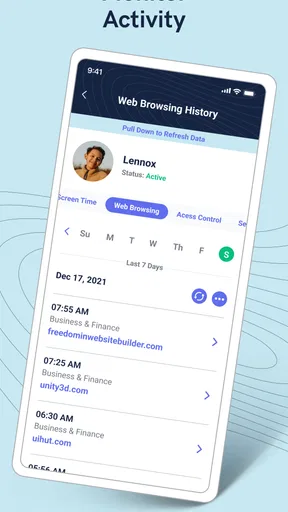
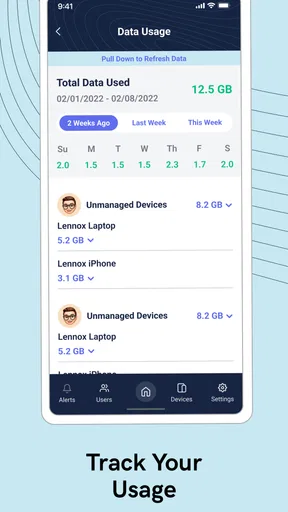
Our Review of Gryphon Connect
 Analysis by Appyee
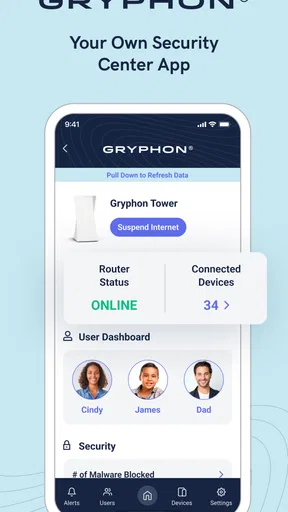
I approached Gryphon Connect as a companion app for people who want to manage a Gryphon mesh WiFi system from a phone rather than treat the router as a device they configure once and forget. That distinction matters. This is not a general internet-speed test, a standalone security scanner, or a replacement for your internet provider’s app. Its purpose sits closer to home-network control and protection, with the Gryphon hardware doing the networking work and the mobile app acting as the practical point of contact.
That makes it an interesting lifestyle app, although the category can feel slightly misleading at first. The app is free to install, rated for Everyone, and comes from Gryphon Online Safety. Its store presence is modest, with over ten thousand installs and an average rating of around 3.3 from roughly 580 ratings. I would not read those figures as a complete verdict on the experience, but they do suggest that expectations should be realistic: this is a specialized companion rather than a universally polished household essential.
How Gryphon Connect feels in everyday use
The first thing I would clarify to a friend is that the app’s speed depends on two separate layers. The phone interface can feel responsive, but that does not automatically mean the WiFi connection itself is fast. Conversely, a strong mesh network can still feel frustrating if the app takes too long to show information or guide you through a task. Keeping those two experiences separate helps set a fair expectation.
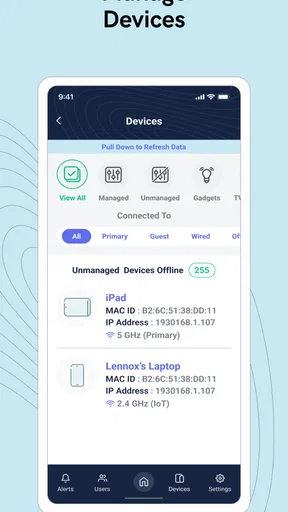
For quick checks, a companion app like this is most useful when it gets me from opening the app to the relevant household setting without making me search through technical menus. I want to identify the network, understand what is connected, and reach the protection or management controls without needing to remember router terminology. Gryphon Connect is built around that kind of relationship with the home network, so its value is less about flashy phone performance and more about reducing the effort involved in looking after connected devices.
I would not install it expecting a dramatic boost in browsing speed. An app cannot create bandwidth that your broadband plan or physical network does not provide. What it can do is make the system easier to supervise. That is a useful distinction for families, especially when the person responsible for the WiFi is not the same person who originally installed it.
What happens during a busy evening
A realistic scenario is a home where several people are online at once: one person is watching video, another is working, a child is using a tablet, and phones are moving between rooms. In that situation, I would use the app as a control point rather than constantly stare at it. The important question is whether it helps me understand the network when something feels wrong, not whether it makes every device perform identically.
Heavy use also exposes the difference between a mesh system and a single-router setup. A mesh arrangement is intended to spread coverage through the home, but the app itself does not remove every physical limitation. Walls, distance, interference, the placement of the hardware, and the quality of the incoming connection still matter. If a device is placed at the edge of coverage, changing a setting in the app may not solve a weak signal. The practical benefit is that management becomes more accessible; the physical network still needs sensible placement.
One useful habit is to check the app during a calm period rather than waiting for a family member to complain. I would first learn where the main network controls are, then make only one change at a time. That creates a simple cause-and-effect trail. If several settings are altered during a busy evening, it becomes much harder to know whether the improvement came from the app, the hardware, or a temporary problem with the internet connection.
The most important performance tip is to treat the app as a diagnostic and management window, not as a magic speed button. That mindset prevents a common disappointment: blaming the mobile interface for a limitation that actually comes from the broadband line or the home’s layout.
Stability matters more than visual polish
For a home-network companion, reliability is more important to me than decorative design. I need the app to remain understandable when I am dealing with a connection problem, and I want changes to feel deliberate rather than mysterious. A network tool can be perfectly attractive and still be poor if it leaves me unsure whether an action was completed.
My confidence would come from using it for small, repeatable tasks first. I would open it when the network is working normally, inspect the available areas, and learn the basic flow before attempting anything more consequential. This is especially sensible for a shared household, because the person who manages the system may not be the person who notices a problem first.
There is also a recovery issue that is easy to overlook. When WiFi is unavailable, the phone may not be able to communicate with the network in the same way it does during normal operation. That means I would not rely on the app as the only route back from every possible failure. Keeping the hardware’s normal setup information and the internet provider’s support details accessible is sensible. The app can simplify management, but it should not replace basic household preparedness.
In practical terms, I would avoid making changes while the family is depending on the connection for a meeting, a class, or an important call. Even a well-designed control app is being used at the wrong moment if a configuration change creates uncertainty. The better workflow is to test adjustments when the household can tolerate a short interruption, then leave the network alone once it is stable.
Where device limits enter the picture
Gryphon Connect supports Android devices running version 5.0 or later. That is a broad compatibility range, which is helpful for households with older phones, but compatibility should not be confused with identical performance on every handset. Older hardware may feel less fluid than a newer phone, particularly when several other apps are competing for memory or the operating system is under strain.
I would also consider the phone’s role in the household. If several adults need to manage the same system, the experience depends on how clearly everyone understands the setup and access arrangements, not just on whether the app installs successfully. A technically compatible phone in the hands of someone unfamiliar with network settings can still lead to accidental confusion.
Resource demands are difficult to judge from the app’s store details alone, so I would avoid promising that it is exceptionally light or exceptionally demanding. My practical advice is simple: keep the phone’s operating system reasonably maintained, close obvious background problems if the interface behaves slowly, and distinguish app sluggishness from a weak WiFi signal. If the phone is already struggling with ordinary tasks, a network-management app may not feel smooth even when the mesh hardware is operating normally.
The age rating of Everyone makes sense for a household utility, but it does not mean every control should be handed to every family member without explanation. Network changes can affect everyone in the home. I would give routine access to the person who understands the consequences of changing settings, while using the app’s household purpose as an opportunity to teach older children basic online safety rather than letting them experiment freely.
Protection is useful, but it is not the whole safety plan
The strongest reason to consider this app is its connection to Gryphon’s protected mesh WiFi approach. That can appeal to parents or households that want network management and safety concerns handled in one ecosystem instead of assembling separate tools. The developer, Gryphon Online Safety, clearly places the product in that space, and the app makes the most sense when paired with the company’s networking hardware.
Still, I would not treat a protected home network as a complete substitute for good digital habits. Device updates, strong account passwords, careful handling of suspicious messages, and sensible privacy settings remain important. A network-level tool can support a safer environment, but it cannot make every individual device or online decision risk-free.
This is one of the app’s less obvious trade-offs. The convenience of a unified system is valuable, but it also ties the experience more closely to Gryphon’s hardware and approach. Someone who wants a completely hardware-neutral tool may find a general router-management app or a provider-specific application more suitable. Someone who already uses Gryphon equipment, however, has a stronger reason to accept that relationship because the app is designed around it.
How it compares with ordinary router apps
Compared with a basic router utility, Gryphon Connect appears aimed at a broader household experience rather than purely technical administration. A conventional router app may focus on WiFi names, passwords, firmware controls, or simple connected-device lists. Gryphon’s appeal is the combination of mesh networking and online-safety positioning, which makes it more relevant to families who want the network to be part of their home-management routine.
The trade-off is that a specialist ecosystem can be less flexible for people who mix equipment from several manufacturers. If your priority is advanced control over a varied network, a more technical router interface may offer the kind of detail you actually need. If your priority is making a single family network easier to supervise, Gryphon Connect is a more natural fit.
I would also separate it from internet-provider apps. Provider apps are usually better for billing, service outages, plan information, and contacting support. Gryphon Connect belongs on the local network side of that boundary. If the entire neighborhood has lost service, opening a WiFi-management app is unlikely to be the best first step. If the broadband line works but a particular part of the home has a connectivity or management issue, the Gryphon ecosystem is more relevant.
Cost, version, and the commitment behind the free download
The app itself is free, which lowers the barrier to trying it. However, the wider experience is connected to Gryphon’s networking products, and the app includes in-app purchases ranging from under a dollar to just under ninety dollars per item. I would therefore avoid describing the whole ecosystem as simply free. Before committing, I would check which functions are available with the hardware and service arrangement I intend to use, especially if I am comparing it with a router that has no comparable ongoing purchase structure.
The current version is 05.0003.55, while the app was released in early January 2020. Those details tell me that this is an established product line rather than a brand-new experiment, but they do not guarantee that every phone will deliver the same experience. App updates, Android behavior, and the connected Gryphon equipment all influence how the system feels in practice.
For that reason, I would make the purchase decision around the complete household setup, not the download alone. If I already own compatible Gryphon equipment, the free app is a logical part of using it. If I am choosing a new mesh system, I would compare the total cost, the management style, and the safety features against alternatives before treating the app as the deciding factor.
Who will get the most from it?
I think it is best suited to families and non-specialist users who want a more approachable way to manage a protected mesh network. It can also suit a household where one person handles technology for everyone else and needs a mobile control point that is easier to explain than a traditional router dashboard.
A particularly good use case is a medium-sized home with several connected devices and a preference for one ecosystem. Instead of asking each person to troubleshoot independently, the household can establish a simple routine: identify the network problem, check the relevant area in the app, make a measured change, and confirm whether the situation improves. That workflow is more valuable than any single button because it reduces guesswork.
I would be more cautious about recommending it to networking enthusiasts who want deep manual control, people who do not plan to use Gryphon hardware, and households that only need internet-provider account management. It is also not the right answer for someone expecting an app alone to fix slow broadband, poor hardware placement, or an overloaded connection.
My final performance verdict
Gryphon Connect makes the most sense as the mobile face of a Gryphon home network. Its perceived speed should be judged by how efficiently it helps with management, not by whether it changes the raw speed of the internet. During heavy household use, its usefulness comes from giving the owner a clearer place to supervise the network, while the actual quality of the connection still depends on the mesh hardware, placement, and broadband service.
I like the focused purpose and the family-oriented safety angle, but I would approach it with practical expectations. The free download is attractive, the Everyone rating makes it approachable, and Android support beginning with version 5.0 gives it room to work on older phones. At the same time, the modest average rating of around 3.3 and the presence of paid items are reminders to evaluate the complete Gryphon setup rather than assuming the app alone is the product.
My recommendation is straightforward: choose it if you value a unified Gryphon mesh and safety experience, especially in a busy family home. Skip it if you need hardware-independent network controls or only want to manage your internet-provider account. Used within its intended role, it can make home WiFi feel less mysterious and easier to supervise. Just keep a backup recovery plan, change settings methodically, and remember that a mobile control panel can improve management without overcoming the physical limits of your network.
Verdict
Strengths of Gryphon Connect
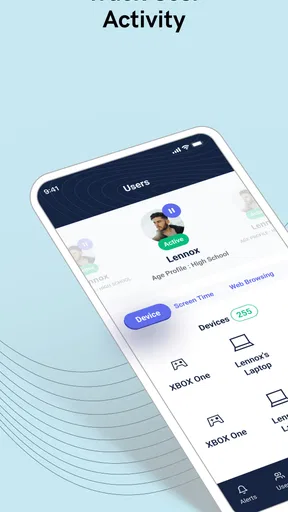
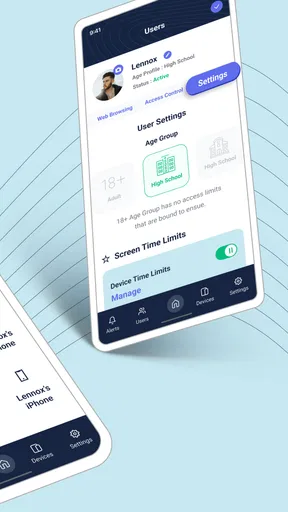
- Simple parental controls for managing connected devices and screen time.
- Useful security features help protect the home network from online threats.
- Device profiles make it easier to apply different rules for each family member.
- Remote access lets you manage network settings while away from home.
- Clear activity insights can help identify unusual or risky browsing behavior.
Limitations of Gryphon Connect
- Requires compatible Gryphon hardware to unlock its full functionality.
- Some advanced controls may require a paid subscription or additional fees.
- Initial setup can take time when adding many devices to the network.
- Network reports may feel limited compared with dedicated security software.
- Performance depends on the quality and stability of the Gryphon router.
Similar Picks in This Category
View All
SmartThings
Samsung Electronics Co., Ltd.4.6

Google Home
Google LLC4.0

Pinterest4.2

Astrotalk - Talk to Astrologer
Astrology & Horoscope4.7

My Verizon
Verizon Consumer Group4.5

Samsung Wallet (Samsung Pay)
Samsung Electronics Co., Ltd.4.1
Frequently Asked Questions
What is Gryphon Connect and what can I use it for?
Gryphon Connect is the companion app for Gryphon Wi-Fi mesh routers. It allows you to set up and manage your home network from a phone or tablet, check connected devices, create profiles for family members, pause internet access, and apply security or parental-control settings. Its usefulness depends on owning a compatible Gryphon router, so downloading the app alone will not provide Wi-Fi service.
Do I need a Gryphon router to use Gryphon Connect?
Yes. Gryphon Connect is designed to work with Gryphon hardware and is not a general-purpose Wi-Fi analyzer or standalone internet-management application. During setup, the app normally requires a compatible Gryphon router and an account. Before installing, check the supported model list, firmware requirements, and regional availability, particularly if you purchased a used device or an older Gryphon system.
Can Gryphon Connect manage parental controls and individual devices?
The app provides tools for assigning devices to household profiles, setting schedules, pausing internet access, and applying content-filtering or browsing-related controls, depending on the Gryphon model and subscription plan. These features are helpful for managing children’s screen time, but they are not perfect replacements for supervision. Device identification can occasionally be inaccurate, and controls may vary across operating systems and connected equipment.
Does Gryphon Connect require a subscription or collect personal data?
Some Gryphon features may require a paid subscription, especially advanced security reports, enhanced parental controls, or additional monitoring services. The exact pricing and included features can change by model, region, and promotion, so review the current terms before subscribing. Because the app manages network activity and household devices, also read Gryphon’s privacy policy to understand what account, device, and usage information may be collected.
Is Gryphon Connect easy to set up, and what permissions does it need?
Setup is generally guided through the app, but you should have your Gryphon router, modem connection, account details, and mobile device ready. Depending on the platform and setup stage, the app may request permissions such as local-network access, Bluetooth, notifications, or location-related access used for device discovery. Grant only permissions you understand, and keep both the app and router firmware updated for the best experience.
